Search Our Content Library
- Accredited Learning
- Adobe
- AI in AECO+D&M
- Arch-Intelligence
- Autodesk
- Autodesk Construction Cloud
- AVAIL
- Bentley
- Bluebeam
- Business & Management Skills
- Camtasia
- Enscape
- Esri
- EVOLVE MEP
- Global BIM Standards
- Green Badger
- Guardian
- Health & Safety (HSI)
- Ideate Software
- Lumion
- Manufacturing Design
- MarkedUp
- McNeel
- Microsoft
- Newforma
- Newforma Konekt
- OneClick LCA
- Panzura
- Pinnacle Series
- Procore
- Project Management
- Revizto
- SketchUp
- SmartDraft
- Solibri
- SOLIDWORKS
- Tekla
- Trimble
- Twinmotion
- US Army Corps of Engineers
- V-Ray
- Course Library
- /
- Autodesk Desktop Connector
- /
- Autodesk Desktop Connector Workflow
Workflow Processes:
-
Installing Deskop Connector
This process includes tasks for accessing Desktop Connector on your local workstation. If you already have the most recent version of Desktop Connector installed on your system, you can skip these tasks. The Desktop Connector is frequently updated by Autodesk, and although Autodesk recommends you always stay on the newest version of Desktop Connector, it is important to read the release notes and consult with your IT staff or Project admin before updating. This is particularly important if you are upgrading from 15.x to 16.x. Quick Links for Desktop Connector Autodesk Account Home Latest Release Notes Desktop Connector 16.x FAQs Historical Releases -
Desktop Connector for Forma Data Management
This process outlines the basic workflow and core tools used when working with Desktop Connector and Forma Data Management. When using Desktop Connector with Data Management there are key features and limitations you'll need to know. Here are few details to keep in mind. Forma Data Management Connected Drive The connected drive for Forma Data Management s is found in the Shortcuts panel of File Explorer. Expanding this folder will display all of the Forma projects that are synchronized with the connected drive. Using "Select Projects" from the Desktop Connector Help & Settings menu will allow you to manage which Forma projects are synced. Desktop_Connector_fo_004 Status Icons Files residing in the connected drive will have the following status attributes when viewing in File Explorer. When working with files it will be important to understand the status of the file. Desktop_Connector_fo_001 Automatic File Locking Forma Data Management uses Automatic File Locking, which automatically locks files to prevent other members from making conflicting modifications to the same file. If a member opens a file which is locked by someone else, they will only be able to view the file in read-only mode. Once the file is closed, the lock won't display and another member can now access and modify the file. Unsupported File Types for Automatic File Locking Notepad PDF files opened in a browser. Long Path Limitations The connected drive is restricted by the same long path limitations as Microsoft office. To learn more about these limitations see: Long Path Limitations. Long Path Supported Workflows Long Path Unsupported Workflows Supported and Unsupported Formats Drive also has limitations of file formats that are supported for online viewing, uploading, and referencing. See the following pages in Desktop Connector online help: Supported Files and References Viewable File Formats Unsupported File Types Troubleshooting Issues in Desktop Connector To find answers to common problems or issues with Desktop Connector see: Troubleshooting, Resolve File and Folder Errors, Resolve File and Folder Conflicts -
Desktop Connector for Drive
This process outlines the basic workflow and core tools used when working with Desktop Connector and Autodesk Drive. When using Desktop Connector with Drive there are key features and limitations to know. Connected Drive The connected drive for Autodesk Drive is found under the "This PC" folder on your workstation, where you'll see 2 folders; My Data and Shared with Me. Data that you work with in Drive should always go into the My Data folder. Desktop_Connector_fo_002 Status Icons Files residing in the connected drive will have the following status attributes when viewing in File Explorer. When working with files it will be important to understand the status of the file. Desktop_Connector_fo_003 Long Path Limitations The connected drive is restricted by the same long path limitations as Microsoft office. To learn more about these limitations, see Long Path Limitations. Supported/Unsupported Files and References Drive also has limitations of file types that are supported for online viewing, uploading, and referencing. See the following pages in Desktop Connector online help: Supported Files and References Viewable File Formats Unsupported File Types Troubleshooting To find answers to common problems or issues with Desktop Connector see Troubleshooting. REFERENCES: To help you understand these concepts better, view the how-to videos on: Drive Data Source Overview
Like what you see? We’d love to give you a guided tour of the best Pinnacle has to offer.
Book Your DemoTrusted By Leaders









Before You Go
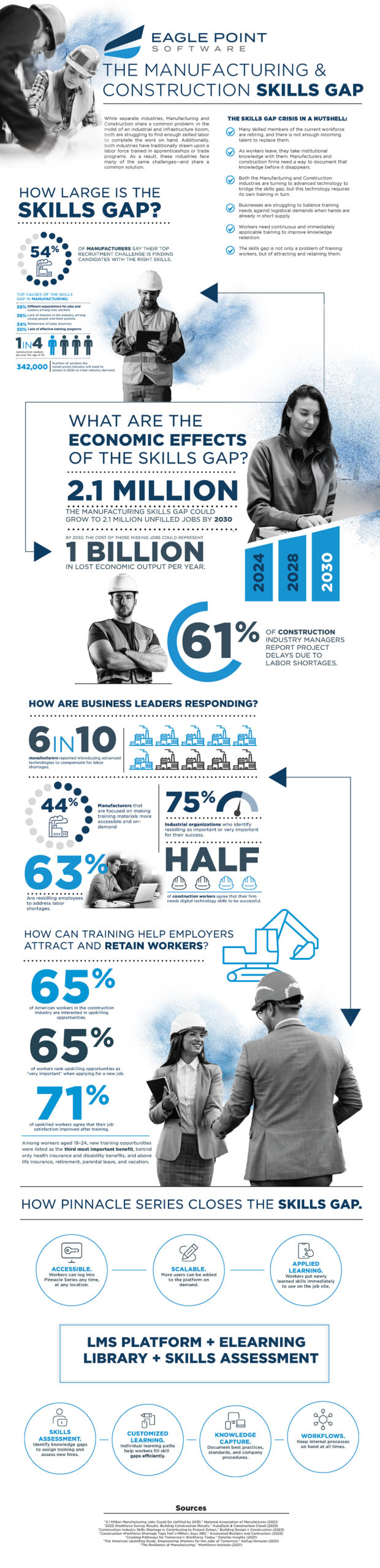
Understanding the Manufacturing & Construction Skills Gap
We went deep into the latest market research and created a resource to give you fresh insight into your recruitment challenges.