Search Our Content Library
- Accredited Learning
- Adobe
- AI in AECO+D&M
- Arch-Intelligence
- Autodesk
- Autodesk Construction Cloud
- AVAIL
- Bentley
- Bluebeam
- Business & Management Skills
- Camtasia
- Enscape
- Esri
- EVOLVE MEP
- Global BIM Standards
- Green Badger
- Guardian
- Health & Safety (HSI)
- Ideate Software
- Lumion
- Manufacturing Design
- MarkedUp
- McNeel
- Microsoft
- Newforma
- Newforma Konekt
- OneClick LCA
- Panzura
- Pinnacle Series
- Procore
- Project Management
- Revizto
- SketchUp
- SmartDraft
- Solibri
- SOLIDWORKS
- Tekla
- Trimble
- Twinmotion
- US Army Corps of Engineers
- V-Ray
- Course Library
- /
- Navisworks 2026
- /
- Navisworks Project Review Workflow
Workflow Processes:
-
Export Models
This process will take you through the necessary steps to export your Civil 3D and Revit models into a format that is compatible with Navisworks. -
Start Navisworks Project
The tasks in this process will assist you in creating and setting up a Navisworks project. These include creating a starting viewpoint, adding selection sets and filters, and overriding object visibility and appearance. -
Review the Project
This process will walk you through creating viewpoints, taking measurements, redlining viewpoints, tagging objects in the project, and commenting viewpoints. In addition to this process, if you are a Navisworks Manage user, you can use the simulation tools described in the Simulate the Construction process and the Locate Interferences process to enhance project review, coordination and collaboration with the project team. -
Visualization
The tasks in this process describe how to create an animation of the project using the Saved Viewpoints list and by directly recording a walkthrough. These animations can be used to present to the team and other project stake holders. -
Simulate the Construction
The TimeLiner feature allows you to link the model to an external construction schedule for visual time and cost based planning. You can then connect tasks in the schedule with objects in the model to create a simulation. By doing this, you can visualize the effects of the schedule on the model. You can also compare planned dates against actual dates. You can combine the TimeLiner functionality with other Navisworks tools. Using Object Animation in conjunction with TimeLiner can help you with workspace and process planning. TimeLiner and Clash Detective together enable you to do time-based conflict checking on the model. TimeLiner, Object Animation and Clash Detective can combine to fully test animated TimeLiner schedules. For example, you can check that construction equipment can move around the job site without colliding with anything else in the project. The tasks in this process describe how to create tasks, configure data sources, link objects and create a simulation. -
Locate Interferences
This process will walk you through locating and managing interferences in the model by using the Clash Detective tools. Clash tests can also be combined with other Navisworks tools like Animator and TimeLiner. This will enable you to test how the movement of the parts can conflict with other model elements and further this with the project time line. -
Quantification
This process will walk you through quantification in Navisworks. Model objects and non-model objects can be added to quantification workbooks. Quantification workbooks can then be exported to other software for further analysis.
Like what you see? We’d love to give you a guided tour of the best Pinnacle has to offer.
Book Your DemoTrusted By Leaders









Before You Go
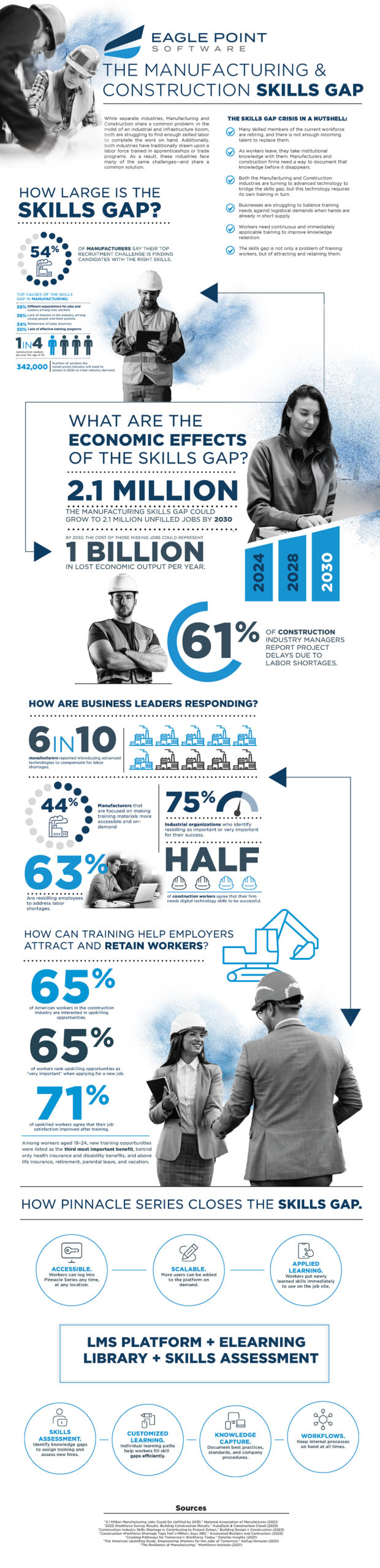
Understanding the Manufacturing & Construction Skills Gap
We went deep into the latest market research and created a resource to give you fresh insight into your recruitment challenges.